
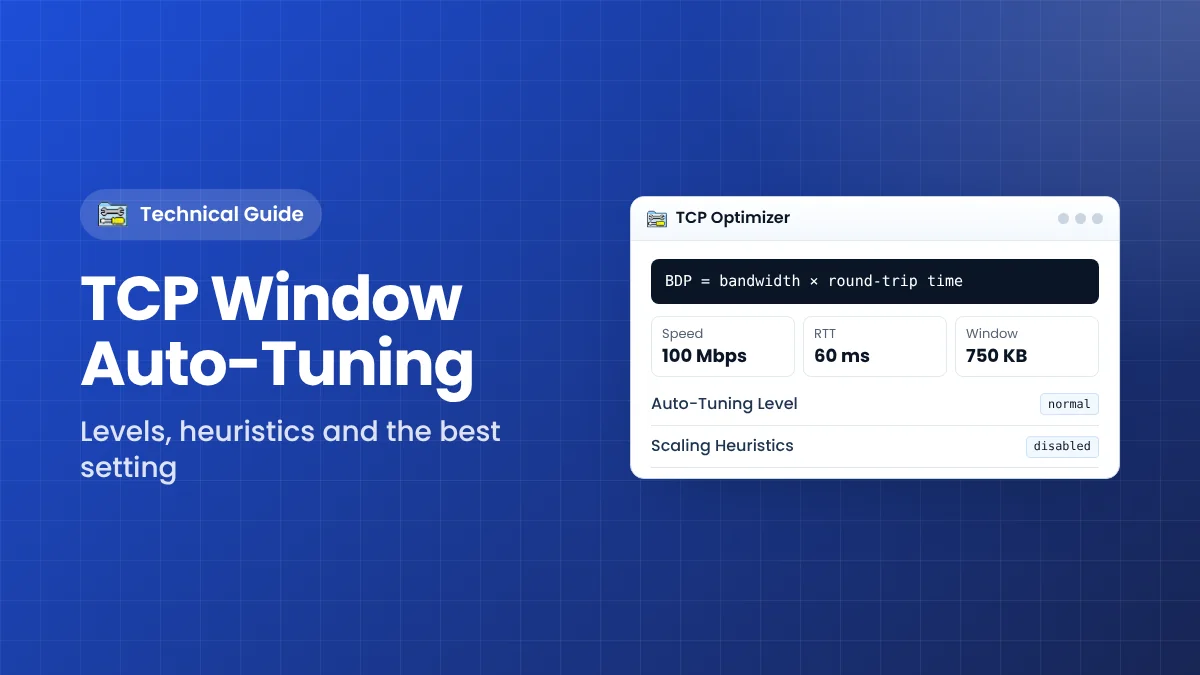
TCP Window Auto-Tuning is the first setting on TCP Optimizer’s General tab and one of the most important for download speed. It decides how much data Windows allows to be “in flight” before waiting for confirmation. This guide explains the idea in plain terms, describes each auto-tuning level and shows which setting suits most connections.
What Is the TCP Receive Window?
TCP sends data in batches. The receiver tells the sender how much data it is ready to accept before it sends an acknowledgement; this amount is the receive window, often shortened to RWIN. When the window is full, the sender must stop and wait for the acknowledgement to come back.
On a fast connection with noticeable delay, a small window creates a problem: the sender spends much of its time waiting instead of sending, so the line is never fully used. The original TCP standard limited the window to 64 KB, which is far too small for modern broadband. Window scaling allows much larger values.
Why Window Size Limits Speed
The amount of data needed to keep a connection full is called the Bandwidth-Delay Product (BDP):
BDP = bandwidth × round-trip time
A worked example
- Connection speed: 100 Mbps, which is 12.5 MB per second.
- Round-trip time to the server: 60 ms, or 0.06 seconds.
- BDP: 12.5 MB × 0.06 = about 750 KB.
With a 64 KB window, the maximum possible throughput on this path would be well under 10 Mbps, no matter how fast the plan is. The receive window must be at least as large as the BDP to use the full speed. TCP Optimizer includes a BDP calculator tab for exactly this reason.
What Auto-Tuning Does
Older versions of Windows used a fixed receive window set in the Registry. Since Windows Vista, Windows grows and shrinks the window automatically during each connection. This is Receive Window Auto-Tuning. On modern Windows you cannot type a fixed window size; instead you choose how freely auto-tuning is allowed to grow the window.
The Auto-Tuning Levels
disabled
The window is fixed at its default size and cannot grow. This seriously limits speed on broadband. The developer suggests it only for very slow connections, such as dial-up.
highlyrestricted
Allows the window to grow very conservatively. It can suit connections slower than about 1 Mbps.
restricted
Allows moderate growth. It is a cautious middle ground that limits speed on fast lines.
normal
Allows the window to grow to suit most connections. This is the Windows default and the level recommended for nearly all broadband connections, including fast fibre.
experimental
Allows the window to grow to very large values for extremely fast, high-latency links. The developer advises caution: it has been reported to cause problems with Outlook connecting to mail servers, local network shares and some backup software. Since version 4.0.6, TCP Optimizer recommends “normal” rather than “experimental” even for connections above 100 Mbps.
Windows Scaling Heuristics
Windows Scaling Heuristics is a separate setting that lets Windows restrict the receive window on its own when it decides network conditions justify it. The problem is that once restricted, the window does not always return to normal, which can leave a fast connection permanently slower.
TCP Optimizer recommends setting heuristics to disabled, so the auto-tuning level you chose stays in place over time. Both settings work together: auto-tuning sets the limit, and disabling heuristics stops Windows from lowering it later.
How to Set Auto-Tuning in TCP Optimizer
- Run TCP Optimizer as administrator.
- Set the connection speed slider to your plan’s advertised speed. The slider determines the recommended level.
- Select Optimal; for most broadband this sets auto-tuning to normal and heuristics to disabled.
- To pick a level manually, select Custom and choose it from the TCP Window Auto-Tuning list.
- Click Apply changes, tick Backup and Create Log, confirm and restart.
Checking the Current Level Without the Program
You can see the current settings in an elevated Command Prompt with netsh int tcp show global. Look for “Receive Window Auto-Tuning Level”. You can also set it manually with netsh int tcp set global autotuninglevel=normal, followed by a restart.
Signs Your Auto-Tuning Setting Is Wrong
- Downloads stuck far below your plan speed, especially from distant servers: auto-tuning may be disabled or restricted, or heuristics may have limited the window.
- Mail or shared folders failing after tuning: auto-tuning may be set to experimental.
- Speed drops after a while and never recovers: scaling heuristics may still be enabled.
Settings That Work Together With Auto-Tuning
Auto-tuning controls the receive side, but a few other settings on the same tab influence how quickly a connection reaches full speed.
Congestion Control Provider
This decides how quickly Windows increases its send window. Version 4.1.1 recommends CUBIC on newer Windows 10 and 11 builds, which handles high-bandwidth, high-latency paths well. CTCP is an alternative that may suit lossy connections and real-time traffic.
TCP 1323 Timestamps
Timestamps add 12 bytes to every packet header. TCP Optimizer recommends leaving them disabled while keeping window scaling enabled, since scaling is what allows windows larger than 64 KB.
Receive-Side Scaling
RSS spreads incoming network processing across CPU cores. On multi-core systems with a supporting adapter it should be enabled, so the CPU can keep up with large windows at high speed.
How to Test a Different Level
- Back up your settings and record speed tests to a distant server, where the effect of the window is largest.
- In Custom mode, change only the auto-tuning level.
- Apply, restart and repeat the same tests at a similar time of day.
- Check that email, network shares and backup software still work.
- Keep the new level only if speed improves and nothing breaks.
Using the Program’s BDP and Latency Tabs
TCP Optimizer includes a Bandwidth-Delay Product calculator and a Latency tab. To estimate your own needs, ping several distant hosts with a larger packet size, take the average round-trip time and double it as a realistic maximum delay, as the developer suggests. Enter that delay and your plan speed into the BDP tab to see how much data must be in flight. On modern Windows you cannot set this window directly, but the result shows why normal auto-tuning matters on fast or distant connections.
For example, a 200 Mbps connection to a server 100 ms away needs about 2.5 MB in flight. That is far beyond the classic 64 KB limit, and it shows why disabling auto-tuning or leaving scaling heuristics enabled can hold back fast connections to distant servers, even when local speed tests look fine.
Frequently Asked Questions
Should I disable auto-tuning to fix slow internet?
Usually not. Disabling it locks the window at a small size and slows most broadband connections. Use “normal”.
Is experimental faster?
Only on very fast, high-latency links, and it can cause compatibility problems. Most users see no benefit.
Does auto-tuning affect upload speed?
It controls the receive window, so it mainly affects downloads. Upload speed depends more on congestion control.
Key Takeaways
- The receive window limits how much data can be in flight.
- The window must be at least as large as bandwidth × round-trip time.
- “Normal” auto-tuning with heuristics disabled suits most connections.
- Avoid “experimental” unless you have a very fast link and test carefully.
Download TCP Optimizer
Version 4.1.1 · 668 KB · Freeware