
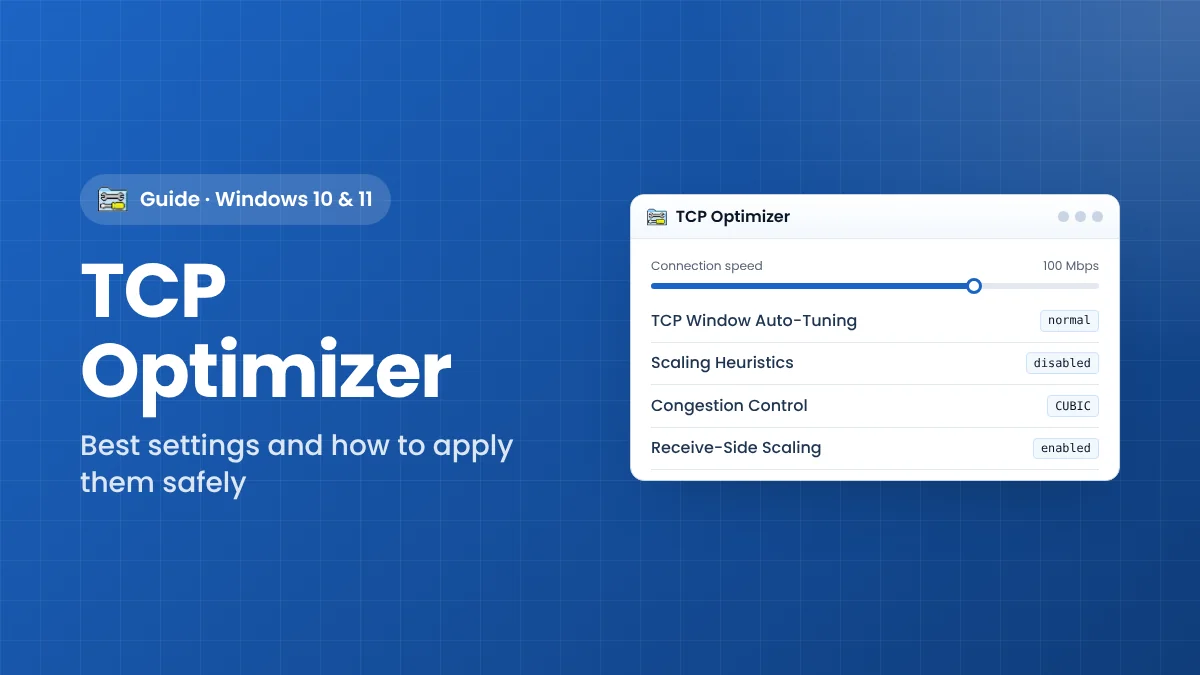
TCP Optimizer turns dozens of hidden Windows networking parameters into a single screen. Used carefully, it can remove bottlenecks that stop a PC from reaching its full connection speed. Used carelessly, it can break email or file sharing. This guide walks through a safe, repeatable way to use it on Windows 10 and 11, and explains what the key settings actually do.
What TCP Optimizer Changes (and What It Doesn’t)
The program edits the Windows TCP/IP stack: the part of the operating system that decides how data is split into packets, how much may be sent before an acknowledgement arrives, and how lost packets are handled. On Windows 8, 10 and 11 it does this through PowerShell cmdlets and netsh commands; some values are still stored in the Registry.
It does not change your router, your Wi-Fi signal or your provider’s speed limit. If your plan is 50 Mbps, no setting will make it 100 Mbps. What it can do is stop Windows from becoming the weakest link.
Before You Start: Prepare Your PC
Record a baseline
Results only mean something if you can compare them. Before touching anything:
- Run three speed tests at the same time of day and note the average download, upload and ping.
- Ping a distant server a few times and note the average round-trip time.
- Write down your plan’s advertised maximum download speed.
Get the right file
Download version 4.1.1 from the download section on our homepage. It is the original 668 KB program by SpeedGuide.net with no installer. Save it to a permanent folder such as C:\Tools, because the backups you create are easiest to find next to the program.
Close bandwidth-heavy apps
Cloud sync clients, game launchers and streaming tabs can quietly use bandwidth in the background and distort both your baseline and your later results. Pause them while you test, and keep testing conditions identical before and after the change.
Use an administrator account
Sign in with your main Windows account (some values are stored per user) and make sure it has administrator rights. Without elevation, many changes silently fail.
Step-by-Step: Apply the Optimal Settings
For most people, these five steps are all that is needed.
1. Launch as administrator
Right-click the file and choose Run as administrator. On Windows 10 and 11 the program spends a few seconds running PowerShell queries to read your current values, so wait until the main window appears.
2. Set the connection speed slider
Drag the slider to your plan’s advertised speed, not to a speed-test result. The slider decides which TCP auto-tuning level is recommended. Avoid pushing it to the very top unless you genuinely have a gigabit line, because that selects the “experimental” level.
3. Choose the network adapter
Pick the adapter that connects you to the internet from the drop-down list, or tick Modify All Network Adapters if you switch between Ethernet and Wi-Fi. Leave MTU at 1500 unless your provider uses PPPoE or tells you otherwise.
4. Select “Optimal”
Click the Optimal radio button at the bottom of the window. Every field updates to SpeedGuide’s recommended value. Glance at both the General and Advanced tabs so you know what is about to change.
5. Apply, back up and reboot
Click Apply changes. The preview window lists every modification. Tick Backup and Create Log, confirm, and restart Windows when asked. Most network settings are only loaded at start-up.
Understanding the Settings That Matter Most
You do not need to understand every field, but these explain most of the difference you will notice.
TCP Window Auto-Tuning
Controls how large the receive window can grow. Normal suits nearly all broadband connections. Experimental is only for very fast links and has been linked to problems with Outlook, network shares and some backup software.
Windows Scaling Heuristics
When enabled, Windows may restrict the receive window on its own and not restore it. The recommended value is disabled, which keeps your chosen auto-tuning level in place.
Congestion Control Provider
Decides how fast Windows ramps up sending. Version 4.1.1 recommends CUBIC on newer Windows 10 and 11 builds because it handles high-bandwidth, high-latency paths well. CTCP is a reasonable alternative for gaming or calls on lossy connections.
Receive-Side Scaling and Segment Coalescing
RSS spreads incoming network work across CPU cores and should be enabled on any multi-core PC with a supporting adapter. RSC merges packets to save CPU time but adds delay, so it is recommended disabled, especially on Wi-Fi.
Large Send Offload, ECN and TTL
- Large Send Offload: recommended disabled, because buggy driver implementations are common.
- ECN Capability: disabled by default; some routers drop ECN-marked packets.
- TTL: 64 is the recommended value. It does not affect speed directly.
Optional Tweaks for Online Gaming
The Advanced tab contains settings aimed at responsiveness rather than raw speed. Apply them only if you play latency-sensitive games or use voice chat heavily.
- Disable Nagle’s algorithm: set TcpAckFrequency to 1, TcpNoDelay to 1 and TcpDelAckTicks to 0 so small packets are sent immediately. Large file transfers may become slightly less efficient.
- Network Throttling Index: turning throttling off lets Windows process non-multimedia traffic without its built-in limit.
- SystemResponsiveness: reduces the CPU share Windows reserves for background tasks during games and streaming.
How to Test the Results
- After rebooting, repeat the same three speed tests at the same time of day.
- Use the program’s Latency tab, or a normal ping, to compare round-trip times.
- Check everyday tasks: email, network drives, printers, VPN and backup software.
- If everything works and numbers are equal or better, keep the settings.
If results are worse, change one setting at a time in Custom mode rather than guessing several at once.
How to Undo TCP Optimizer Changes
You have three options, from gentlest to strongest:
- Restore your backup from the File menu, which returns exactly the values you had before.
- Apply Windows Default by selecting that radio button and clicking Apply changes.
- Reset TCP/IP and Winsock from the File menu if the connection is badly damaged, then reboot.
Troubleshooting Quick Fixes
- “Access denied” errors: the program is not elevated; run it as administrator.
- Outlook or shared folders stop responding: set auto-tuning back to normal.
- A game’s log-in hangs: make sure ECN is disabled.
- Some values look unchanged: certain settings are not reported back by Windows; check the log.
- No internet after a restart: restore the backup or set MTU back to 1500.
Frequently Asked Questions
Do I need to run TCP Optimizer again after every reboot?
No. The settings are written to Windows and persist. Re-check them after major Windows feature updates, which can reset some values.
Is it safe on a work laptop?
Ask your IT department first. Managed PCs often have network policies, VPN software or Group Policy settings that should not be overridden.
Does it help on Wi-Fi?
It can, because Windows-side limits apply to every adapter. It cannot fix weak signal or interference, though, so improve router placement first if your Wi-Fi is unstable.
Key Takeaways
- Measure before and after, under the same conditions, or you cannot judge the change.
- Set the slider to your advertised plan speed and start with the Optimal preset.
- Always tick Backup and Create Log, then reboot before testing.
- If something breaks, auto-tuning, ECN and MTU are the first settings to check.
Download TCP Optimizer
Version 4.1.1 · 668 KB · Freeware