
TCP Optimizer is a tiny freeware program, but the way you download and launch it decides whether the experience is smooth or frustrating. This guide explains where the genuine file comes from, how to recognise it, how to store it and how to run it correctly on Windows 10 and 11, so the program can read and change your network settings without errors.
What Exactly You Are Downloading
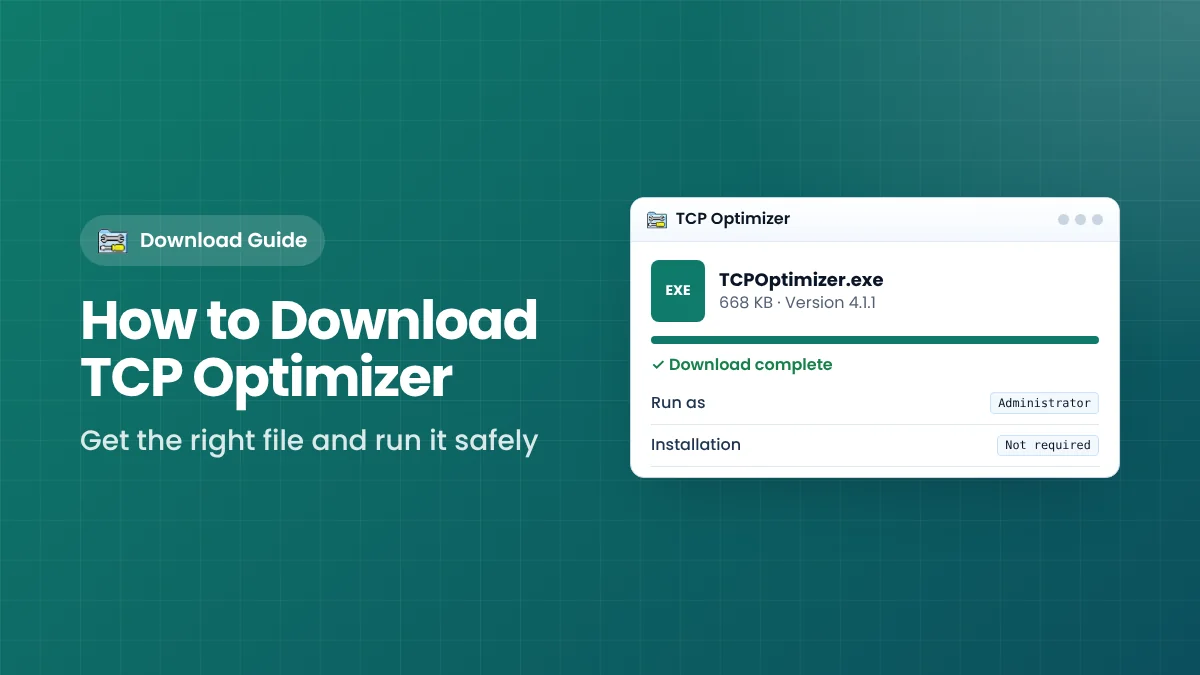
TCP Optimizer is distributed as a single executable file. There is no setup wizard, no extra components and no background service. The current release is version 4.1.1, dated January 8, 2021, and the file is about 668 KB. Because it is portable, the downloaded file is the complete program; once it is on your PC you can run it immediately.
Knowing these basic facts protects you from most problems. A file that is several megabytes in size, that arrives as an installer offering toolbars, or that asks you to install a “download manager” first is not the plain program and should be deleted.
Key facts about the genuine file
- Developer: SpeedGuide.net (Speed Guide, Inc.)
- Version: 4.1.1
- Size: roughly 668 KB
- License: freeware, free to use and share with credit to the author
- Platforms: Windows 7, 8, 8.1, 10 and 11, plus Windows Server 2012–2019
Before You Download: Quick Checklist
A minute of preparation avoids most of the issues people report later. Check the following before you click the download button.
- Confirm you are on Windows. The program does not run on macOS, Linux, Android or iOS.
- Make sure you have an administrator account. Network settings are protected, and the program cannot change them from a standard account.
- Note your internet plan speed. You will need your provider’s advertised maximum download speed when you configure the program.
- Run a few speed tests. Record average download speed and ping now, so you can compare after applying settings.
- Keep your antivirus switched on. There is no reason to disable security software to download or run this program.
Step-by-Step: Downloading TCP Optimizer
Step 1: Use a trustworthy source
Download the program from the download section on our homepage, which downloads the freeware file directly from this website, credited to SpeedGuide.net. Avoid search results that lead to pages full of flashing “Download” adverts, countdown timers or prompts to install a separate downloader.
Step 2: Click the main download button once
Click the single “Download TCP Optimizer” button. Your browser will save the file to its usual downloads folder. Some browsers show a short warning for any executable file; this is a general precaution, not a sign that the file is harmful.
Step 3: Check the downloaded file
Open your Downloads folder and look at the file before running it:
- The size should be around 668 KB.
- It should be a single program file, not an archive containing several installers.
- If you like, right-click it and choose Scan with Microsoft Defender or your own antivirus.
Step 4: Move it to a permanent folder
Do not leave the program in Downloads, where cleanup tools may remove it. Create a folder such as C:\Tools\TCP Optimizer and move the file there. Backups and logs that you create later are easiest to manage when they sit next to the program.
How to Run TCP Optimizer as Administrator
This is the step most people miss. If the program runs without administrator rights, many changes fail or only partly apply, and you may see “access denied” messages.
Run as administrator once
- Right-click the program file.
- Choose Run as administrator.
- When the User Account Control prompt appears, check the details and click Yes.
Make it run as administrator every time
- Right-click the file and choose Properties.
- Open the Compatibility tab.
- Tick Run this program as an administrator and click OK.
On Windows 8, 10 and 11 the program runs several PowerShell queries at start-up to read your current settings. A short loading window is normal; give it a few seconds before clicking anything.
Dealing With Windows SmartScreen
Windows SmartScreen sometimes shows a blue “Windows protected your PC” message for small or less common programs. This happens because SmartScreen relies on how often a file is downloaded, not on what the file actually does.
- Click More info to see the file name and publisher details.
- If the file came from a trusted source and matches the expected size, click Run anyway.
- If you have any doubt, do not run it; delete the file and download it again from a trusted source.
Never turn off SmartScreen or your antivirus completely just to run a program. Allowing a single, verified file is enough.
What to Do on First Launch
Once the main window opens, take a moment before changing anything:
- Leave the preset on “Current” and look through the General and Advanced tabs to see your existing values.
- Create a backup from the File menu so you have an exact copy of your starting configuration.
- Set the connection speed slider to your plan’s advertised speed.
- Select your network adapter, or tick “Modify all network adapters” if you use both Wi-Fi and Ethernet.
- Choose “Optimal”, click Apply changes, review the preview and restart Windows.
How to Avoid Fake Download Pages
Popular free tools attract copycat download sites. Most are harmless but annoying; some bundle unwanted software. Watch for these warning signs:
- Several large “Download” buttons on one page, many of them adverts.
- A forced countdown before the download starts.
- An installer that offers browser extensions, “PC cleaners” or toolbars.
- A file name with extra words such as “setup” or “installer” and a much larger size.
- Requests to enter personal details or pay for a program that is free.
After Downloading: Recommended First Settings
Once the program opens correctly, a careful first configuration gives you the best chance of an improvement without side effects.
- Connection speed slider: set it to your plan’s advertised maximum. Avoid the highest position unless you have a gigabit connection, because it selects experimental auto-tuning.
- Network adapter: choose the adapter you actually use for the internet, or tick “Modify all network adapters”.
- MTU: leave it at 1500 unless your provider uses PPPoE or gives you a different value.
- Preset: select Optimal, then click Apply changes with Backup and Create Log ticked.
Restart Windows and repeat the speed tests you ran before downloading. Compare the results under the same conditions to see whether the change helped.
Frequently Asked Questions
Do I need to install TCP Optimizer?
No. It is portable. Run the downloaded file directly; nothing is added to the Start menu or to Apps & features.
Is there a separate 64-bit version?
No. One file works on both 32-bit and 64-bit Windows.
Can I keep it on a USB drive?
Yes. Because it is portable, you can run it from a USB drive on several computers, as long as each has an administrator account.
How do I remove it later?
First restore your backup or apply Windows Default if you want your original settings back, then simply delete the file.
Key Takeaways
- The genuine program is a single, portable file of about 668 KB.
- Store it in a permanent folder and always run it as administrator.
- Create a backup before applying any preset.
- Avoid pages with fake buttons, countdowns or bundled installers.
Download TCP Optimizer
Version 4.1.1 · 668 KB · Freeware