
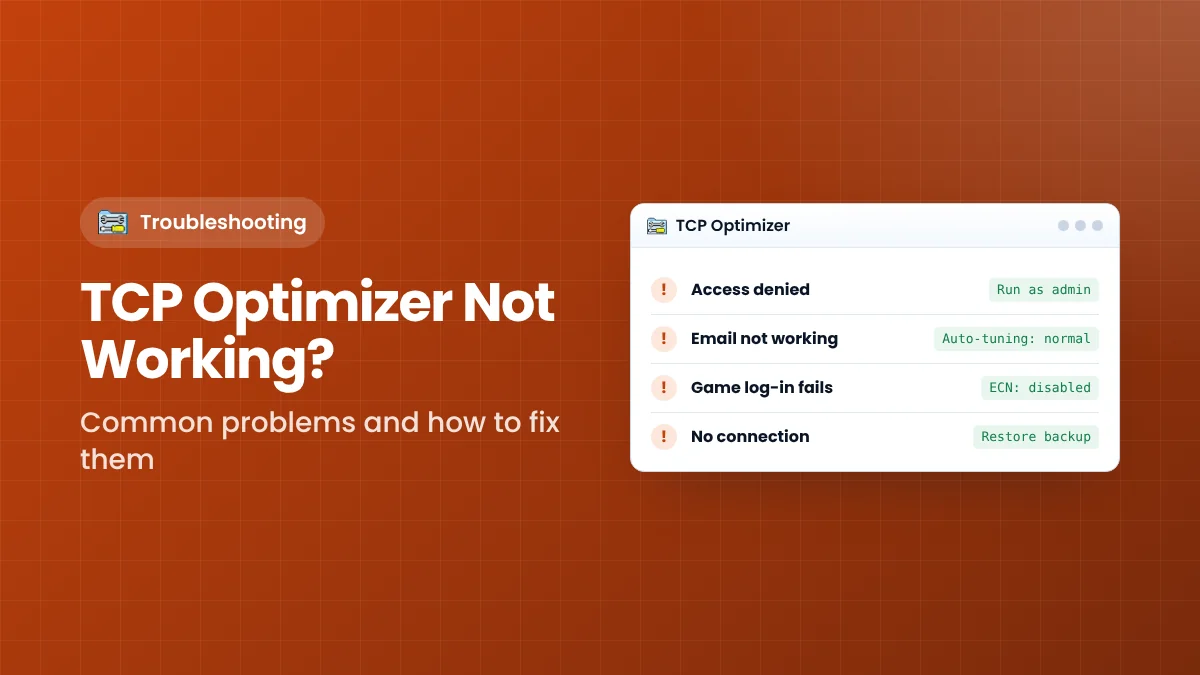
Most TCP Optimizer problems come from a handful of causes: missing administrator rights, settings that do not suit a particular network, or values that Windows does not display after a restart. This troubleshooting guide lists the most common symptoms on Windows 10 and 11, explains the likely cause of each and gives a clear fix.
First Checks for Any Problem
Before working through specific issues, confirm these basics. They solve a large share of reports on their own.
- Run the program as administrator. Right-click the file and choose Run as administrator.
- Use the current version. Version 4.1.1 supports Windows 7 through 11; version 3.x does not support Windows 8 or 10.
- Restart after applying. Most settings only load when Windows starts.
- Check the log. Tick Create Log when applying; it records every command and Windows’ response.
- Close other tuning tools. Two programs changing the same settings will undo each other.
Problem 1: The Program Will Not Open
Symptoms: nothing happens when you double-click, or a SmartScreen or antivirus warning blocks it.
Fixes
- Right-click the file, choose Properties, and click Unblock if the option appears at the bottom of the General tab.
- On a SmartScreen warning, click More info, check the file details, then Run anyway if the file came from a trusted source.
- If your antivirus quarantined it, verify the file is the expected 668 KB program and allow only that file.
- Wait a few seconds on Windows 10 and 11; the program reads settings through PowerShell at start-up.
Problem 2: “Access Denied” or Command Failed Errors
Cause: the program is running without administrator rights, or a policy blocks changes to network settings.
Fixes
- Close the program and run it again as administrator.
- Set it to always run elevated: Properties → Compatibility → Run this program as an administrator.
- On work computers, network settings may be locked by Group Policy; contact your IT department.
Congestion provider error on Windows Server 2019
Some users report an error that the supplemental template could not be updated when setting the congestion provider on Server 2019. Leave that one setting unchanged; Server 2019 already uses CUBIC by default.
Problem 3: Settings Do Not Seem to Save
Symptoms: after a restart, the Current view still shows some values different from Optimal.
Cause: the developer explains that some settings are adapter-specific, some are stored in a TCP template that Windows does not report back, and some have identical default and optimal values. These may not display as changed even though they were applied.
Fixes
- Open the log file and confirm the commands succeeded.
- Make sure the correct adapter was selected, or tick Modify all network adapters.
- After major Windows updates, re-check and re-apply settings if needed.
Problem 4: Internet Is Slower After Optimizing
Possible causes: an unsuitable slider position, a wrong MTU, or a setting that does not suit your adapter or driver.
Fixes
- Set the slider to your plan’s advertised speed, not a speed-test result.
- Make sure MTU is 1500 unless your provider specifies another value (for example on PPPoE).
- Restore your backup, then change one setting at a time in Custom mode to find the cause.
- Test at the same time of day as your baseline; evening congestion can mislead results.
Problem 5: Email, Network Shares or Backups Stop Working
Cause: TCP Window Auto-Tuning set to “experimental”, usually by moving the speed slider to its highest position. The developer notes this can affect Outlook, local shares and some backup software.
Fix
- Open the program as administrator and select Custom.
- Change TCP Window Auto-Tuning to normal.
- Apply and restart. If the problem remains, apply Windows Default.
Problem 6: Games Fail to Log In or Matchmake
Cause: ECN capability enabled with a router that mishandles ECN-marked packets.
Fix
Set ECN Capability to disabled, which is also the general recommendation, then apply and restart.
Problem 7: No Internet Connection After Changes
Possible causes: an incorrect MTU, a damaged TCP/IP or Winsock configuration, or a conflict with VPN software.
Fixes, in order
- Restore your backup from the File menu and restart.
- If there is no backup, apply Windows Default and restart.
- Use the File menu options to reset TCP/IP and Winsock, then restart.
- As a last resort, run
netsh int ip resetandnetsh winsock resetin an elevated Command Prompt and restart.
When the Problem Is Not TCP Optimizer
If problems continue on Windows Default settings, the cause is elsewhere. Check Wi-Fi signal strength, try a network cable, restart the router, update network adapter drivers and test another device on the same connection. If every device is slow, contact your provider.
Collecting Information Before Asking for Help
If a problem remains, gathering the right details makes it much easier to solve, whether you search for answers or ask in a forum.
- Windows version and build: press Win + R, type
winverand note the result. - TCP Optimizer version: confirm you are using 4.1.1.
- Network adapter: the model shown in the adapter list, and whether you use Wi-Fi or Ethernet.
- The log file: created when Create Log is ticked, it lists every command and any error returned.
- What changed: the preset used, slider position and any Custom values.
- Before and after results: speed and ping tests under the same conditions.
Problem 8: The Network Adapter Is Not Listed Correctly
Symptoms: your adapter is missing from the list, or the displayed IP address looks wrong.
The developer notes that in rare cases a network device is not identified correctly. This has little effect on the program’s performance.
Fixes
- Tick Modify all network adapters so settings apply regardless of the list.
- Make sure the adapter is enabled and connected before opening the program.
- Update the adapter driver from the manufacturer’s website and restart.
Problem 9: Blank Fields on Windows 11
Users on Windows 11 sometimes see empty fields in the Current view after applying Optimal settings. The developer explains that Windows 11’s network stack differs only slightly from Windows 10, so the same settings apply, but some values are not reported back. Check the log to confirm the commands succeeded.
Preventing Problems in the First Place
- Always run the program as administrator and tick Backup and Create Log.
- Start with the Optimal preset rather than copying values from forums.
- Keep the speed slider at your advertised plan speed, not the maximum.
- Restart and test everyday tasks immediately after applying changes.
- Avoid running several network tuning tools on the same PC.
Following these habits means that even if a setting does not suit your network, you will notice quickly and can reverse it in seconds.
When in doubt, return to Windows Default, confirm everything works, and then reapply Optimal. Starting again from a known-good point is often faster than chasing a single unclear symptom.
Most problems turn out to have simple causes, so work through the checks in order rather than changing many settings at once. Patience here saves a lot of time.
Key Takeaways
- Most issues are solved by running as administrator and restarting.
- Experimental auto-tuning, enabled ECN and a wrong MTU cause most connection problems.
- Some values do not display after restart even though they were applied; check the log.
- Backup, Windows Default and a TCP/IP reset can always restore a working connection.
Download TCP Optimizer
Version 4.1.1 · 668 KB · Freeware