
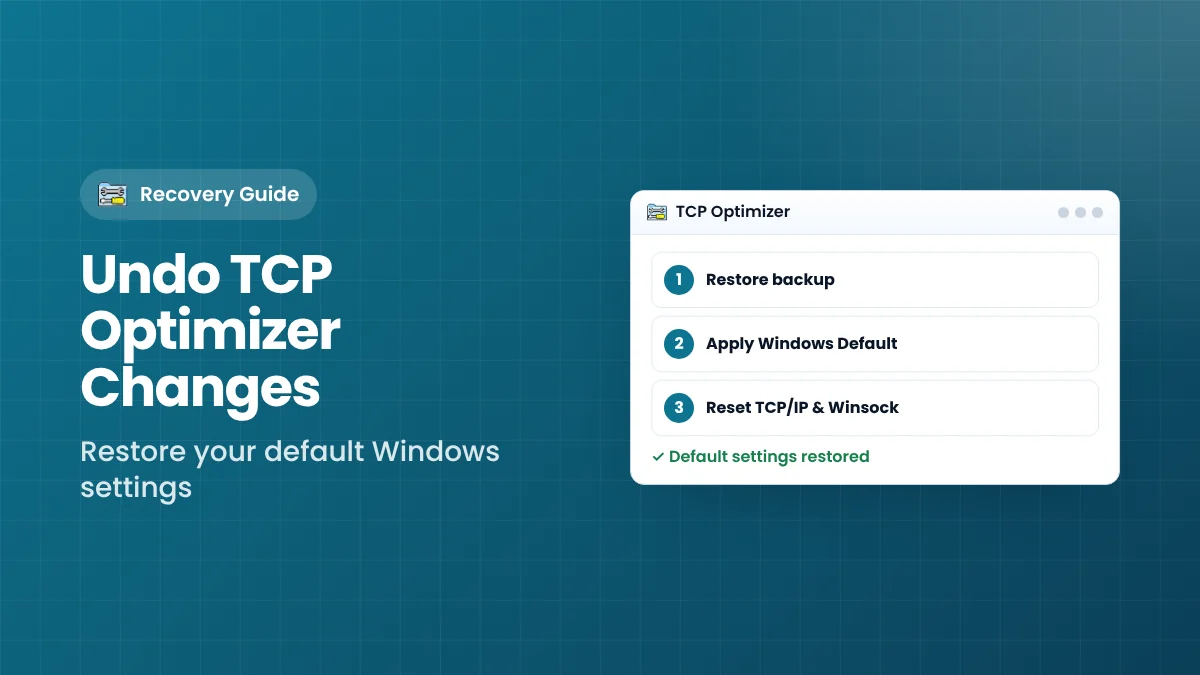
If your connection behaves strangely after tuning, or you simply want your original settings back, TCP Optimizer makes it easy to reverse every change. This guide covers three methods, from the gentlest to the most complete, and explains when to use each one on Windows 10 and 11.
When Should You Undo Changes?
Reversing settings is the right move in situations such as these:
- Email clients such as Outlook can no longer reach the mail server.
- Shared folders or network drives hang or fail to open.
- A game’s log-in or matchmaking stops working.
- Speed or ping is worse than your baseline after a restart.
- You are handing the computer to someone else or to an IT department.
- You want to start again from a clean configuration.
Before You Start
- Run the program as administrator. Restoring settings needs the same permissions as changing them.
- Close programs that use the network, such as games, download managers and VPN clients.
- Plan for a restart. Most network settings only reload when Windows starts.
Method 1: Restore Your Backup
If you ticked Backup when applying settings, this is the best method because it returns exactly the values you had before, including any custom values you set yourself.
Steps
- Open TCP Optimizer as administrator.
- Open the File menu and choose the option to restore a backup.
- Select the backup file you created earlier. It is usually saved next to the program.
- Confirm the restore and restart Windows.
Tip
Keep the program and its backup files together in one permanent folder, such as C:\Tools\TCP Optimizer. Backups left in the Downloads folder are easy to delete by mistake.
Method 2: Apply the Windows Default Preset
If you do not have a backup, the Windows Default preset restores the stock values Microsoft uses for your Windows version. It also removes tweaks made by other tuning tools.
Steps
- Open TCP Optimizer as administrator and wait for it to finish reading current settings.
- Select your network adapter, or tick Modify all network adapters.
- Click the Windows Default radio button at the bottom of the window.
- Check both the General and Advanced tabs to see the values that will be applied.
- Click Apply changes, review the preview and confirm.
- Restart Windows.
What this does not restore
Windows Default restores Microsoft’s standard values. If your PC previously used values set by your employer, your router software or your own manual edits, those will not come back. Only a backup can restore those exact values.
Method 3: Reset TCP/IP and Winsock
Use this when the connection is badly broken, for example when no websites load at all, or when settings seem corrupted. The TCP Optimizer File menu includes options to reset TCP/IP and Winsock.
Steps in TCP Optimizer
- Open the program as administrator.
- Open the File menu and choose the TCP/IP reset and Winsock reset options.
- Restart Windows when prompted.
Doing it manually
You can also run the standard Windows commands from an elevated Command Prompt:
netsh int ip reset– resets the TCP/IP stack.netsh winsock reset– resets the Winsock catalog.
Restart afterwards. Note that a full reset may also clear custom network settings such as static IP addresses, so write them down first if you use them.
After Undoing Changes
- Open TCP Optimizer and select Current to confirm the values.
- Test email, network shares, VPN and games.
- Run speed and ping tests and compare them with your original baseline.
If everything works on default settings, you can try the Optimal preset again and then change one setting at a time in Custom mode to find the value that caused trouble. The usual suspects are experimental auto-tuning, enabled ECN and a non-standard MTU.
Which Method Should You Use?
- You have a backup: restore it (Method 1).
- No backup, connection mostly works: apply Windows Default (Method 2).
- Connection badly broken: reset TCP/IP and Winsock (Method 3).
How to Avoid Needing a Full Reset Next Time
A few habits make future changes painless to reverse:
- Always tick Backup on the apply screen, even for small changes.
- Name your backups clearly, for example by date and purpose, so you know which one to restore.
- Tick Create Log, which shows exactly which commands ran and whether Windows accepted them.
- Change one setting at a time in Custom mode, so you can undo a single value instead of everything.
- Export a known-good configuration from the File menu once your connection works well.
Using an exported configuration
The File menu can export the complete set of TCP Optimizer settings and import it again later or on another PC. An exported file of a working configuration acts as a second safety net alongside the automatic backup, and it is useful when setting up several computers the same way.
Special Cases
VPN software
Some VPN clients install their own virtual network adapters. If you ticked “Modify all network adapters”, these may have received tuned values too. After undoing changes, reconnect the VPN and test it; reinstalling the VPN client restores its own adapter defaults if needed.
Static IP addresses
A full TCP/IP reset can clear manually configured IP addresses and DNS servers. Write them down before resetting, then re-enter them in the adapter’s IPv4 properties afterwards.
After a Windows feature update
Major Windows updates sometimes reset network values themselves. Open the program, compare Current with your intended preset, and re-apply only if needed.
How to Tell the Undo Worked
After restarting, a few quick checks confirm that Windows is back to a healthy network configuration.
- Websites load normally in more than one browser.
- Email connects and sends a test message without delay.
- Shared folders and printers on your home or office network open as usual.
- VPN connects and stays connected.
- Speed and ping are close to your original baseline.
If all of these pass, the original problem was caused by a tuned setting. You can now decide whether to stay on default values or carefully try the Optimal preset again, testing one change at a time. If problems remain even on default values, the cause lies outside TCP Optimizer, for example in Wi-Fi signal, router firmware, adapter drivers or the provider’s connection.
Keeping the program file, its backups and your exported configuration together in one folder means that the next time you experiment, returning to a known-good state will take less than a minute. That small habit removes almost all of the risk from tuning.
Finally, remember that undoing is not a failure. Testing and reverting is exactly how the program is meant to be used safely.
Frequently Asked Questions
Does deleting the program undo its changes?
No. Settings are written to Windows. Restore a backup or apply Windows Default before deleting the file.
Will System Restore undo TCP Optimizer changes?
It may restore some Registry values, but it is less precise than the methods above. Use the program’s own options first.
Why do some values still look different after restoring?
Certain settings are adapter-specific or not reported back by Windows. Check the log and test the connection instead of relying only on what is displayed.
Key Takeaways
- Restoring a backup is the most accurate way to undo changes.
- Windows Default returns stock Microsoft values when there is no backup.
- A TCP/IP and Winsock reset fixes badly broken connections.
- Always restart Windows after undoing settings.
Download TCP Optimizer
Version 4.1.1 · 668 KB · Freeware